Showing posts with label presentation. Show all posts

Thursday, 26 April 2012

E-Book showcase: Meet the publishers


I was pleased to be invited by Fiona Grieg (Content and Development Manager, Plymouth University Library) to speak at the E-Book showcase, an another opportunity to present again for the Hydrographic Academy. I wanted to concentrate on the materials that are used in the interface, rather than the interface itself. Discuss the concerns of copyright and also give a bit of insight into how Learning Technologists can aid in this development. I only had 15mins to talk with the remaining left for discussion, so it was difficult to pack in all the essential background before continuing. Feedback included being impressed with the user interface, a lot of questions on why USB stick (should we have encrypted them? Although these concerns we actually related to their own in-house problems rather than a problem with our content!) I was also asked how well did the tutoring work for an interface that contained predominantly off-line e-learning content?  The Academy chose the offline approach so as not to disadvantage students working on-board ships or locations with poor internet, this of course has to be balanced with a little on-line for tutoring to be effective (for the times when students have a connection).

Thank you for the strong support from the Learning Technologist! All in all a very good debate and feedback.

I will add that I also enjoyed the line up of speakers (below), there are certainly crossovers of development in all these areas, something that Learning Technologists are willing to help develop. I often work with digital mapping and mobile devices utilising GPS, and found John Abraham's talk very interesting. I'm currently applying a little learning technologies to John's GeoTrail that will enable students and visitors to explore the wonders of geology in and around the University and Plymouth.

The Charles Seale-Hayne Library had invited a number of major academic publishers to talk to staff about e-books on Thursday 26 April between 10am and 2pm.
  • 10.30am - Phil Gee 'Psychology's e-book bundle: first year texts for students'
  • 11.15am - Jason Truscott 'Developing technology enhanced, distance learning materials for the Hydrographic Academy'
  • 12.00pm - Publisher Reps 'Future strategies in e-book publishing'
  • 12.45pm - Rachel Christofides 'Using devices in the classroom: Aspire and e-offprints pros and cons'
  • 1.30pm - John Abraham 'Maps and spatial data from Digimap and other sources'  

Wednesday, 18 April 2012

Pelecon 2012 Day 1

IMG_5301IMG_5242IMG_5243IMG_5245IMG_5246IMG_5248
IMG_5252IMG_5253IMG_5256IMG_5261IMG_5263IMG_5265
IMG_5267IMG_5268IMG_5269IMG_5270IMG_5272IMG_5278
IMG_5279IMG_5280IMG_5281IMG_5288IMG_5289IMG_5290
Pelecon 2012 Day 1, a set on Flickr.
A sneak peak of day 1 at Pelecon (Plymouth E-Learning Conference) at Plymouth University... enjoy :)
What to share your own? Feel free to join the Pelecon group on Flickr, we would love to see yours too!

All hands on deck: Developing technology enhanced distance learning for the marine industry
I also co-presented (and chaired) the first opening batch of sessions for the conference to a rough head count of 50 people.  My presentation was to do with the work I had been doing for the Hydrographic Academy.  I decided to angle it towards how we as Learning Technologists would approach such massive distance learning development project (More details are also available in 'My Projects' section about the technology choices made). The video includes the questions at the end.  This project is managed by Dr Richard Thain (Director, The Hydrographic Academy):

Presenting at Plymouth E-Learning Conference 2012


Presented for the Hydrographic Academy today at PELeCON 2012, entitled:
"All hands on deck: Developing technology-enhanced distance learning for the marine industry". We had an excellent turnout with around ~50+ attendees. Coupled with a big load of questions at the end. I was also chairing the session it was a tricky balancing act, but happily managed to stop the questions right on the 30mins, before introducing the next speaker.

The Academy has an usual angle of approach keeping all the electronic materials on a USB stick so the students have access to all the the learning materials they need. The key point we needed to get across was that the internet is limited or non existent through most of their studies. Hence the need for the interface to be 'Offline'.

Wednesday, 30 November 2011

South West HE STEM project presentation by the Hydrographic Academy

I attended a Hydrographic Academy (HA) presentation today with the HA (Plymouth team) of learning technologists and content developers. It's a show and tell of Plymouth University HE STEM awards. Dr Richard Thain showed other Plymouth University academic staff, managers and also
Ruth Waring Development Officer for Higher Skills (SW Region) what we had been up too so far. It's a very busy time, I have to confess that the team has been working at full speed for quite some time and we are in the process of finalising the 'offline' bespoke user interface, it's been a bug testing experience but the learning technologist team has been working fantastically to ensure the end user is happy with the final product. The presentation also included some fun animations created by Luke Denner showing the needs of those persons in the Hydrographic industries to learn on the job. There were glimpses of the various elements of the interface the students will see, we were all very pleased with the positive feedback. Thank you to Prof Jim Griffiths (Head of School of Geography, Earth & Environmental Sciences/Associate Dean, School of Geography, Earth and Environmental Sciences (Faculty of Science and Technology)) for introducing the sessions and Donella Bone for organising the meeting so well!

Tuesday, 25 October 2011

Amazing under ocean features with the Hydrographic Academy

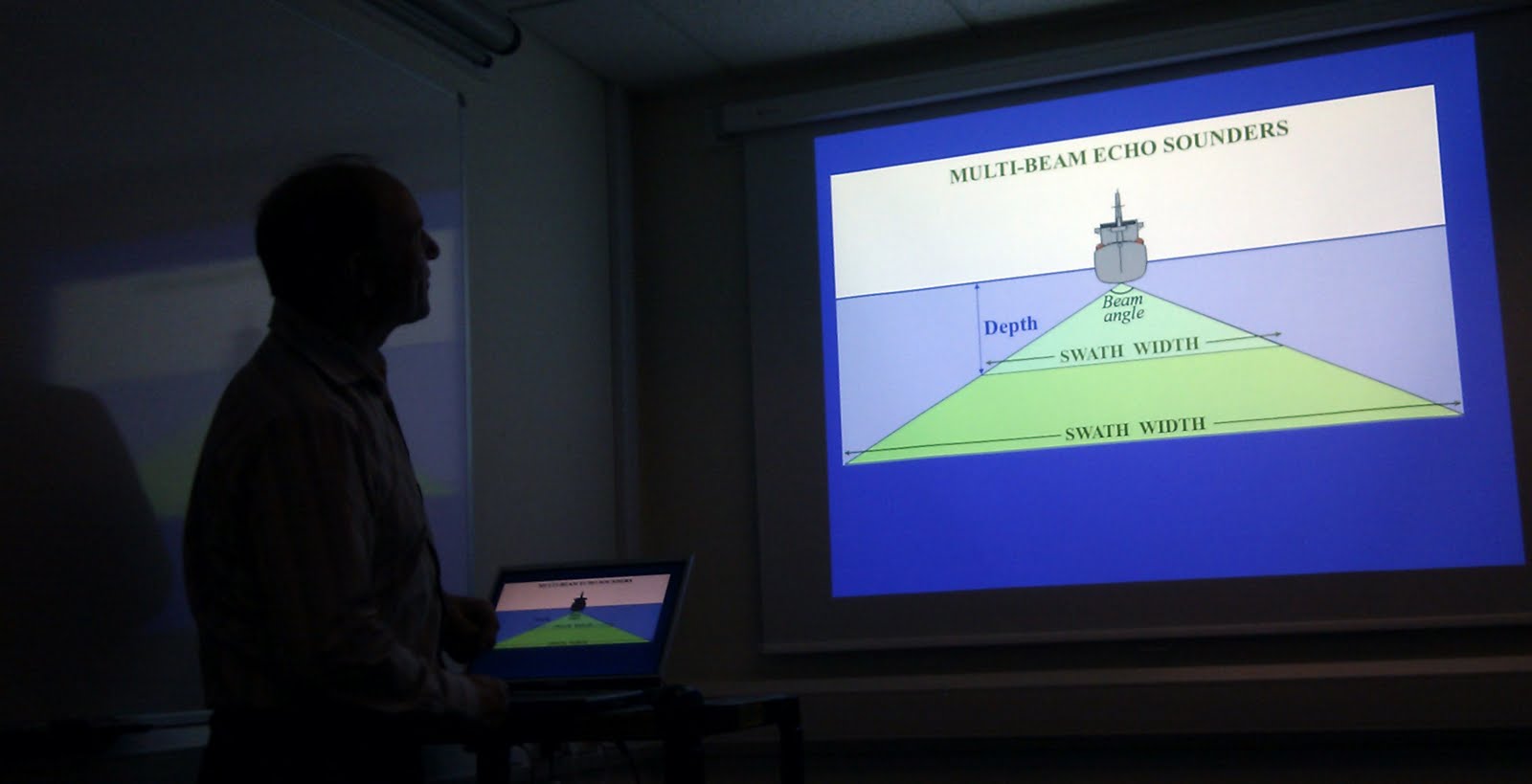
I was pleased to be able to attend a very absorbing presentation by the Hydrographic Academy's own retired Lieutenant Commander Tony Jenks. Tony has an amazing background and decades of experience in Hydrographic Surveying. I was really taken aback by the features at the bottom of our oceans. We are literally talking 'Mount Everest' scale features, over 1 mile down from peak to sea surface (never seen until now). Even Grand Canyon style rivers actually flowing! The article I wrote on the HA blog gives a little more insight, I can certainly recommend attending a presentation by Tony, if you see one advertised.

Tuesday, 2 November 2010

Adding narration to your PowerPoint 2007 slideshow and outputing to video

This is probably common knowledge but I thought I would blog this very easy way of getting your voice onto a PowerPoint presentation.

The completed presentation (if packaged as a 'PowerPoint Slide Show file) can be distributed and played on any PC.  So how does this work? Well as the user records their voice and moves through the slides, all the information is cleverly recoded including the timings of each slide. This process can be done in the comfort of your office but I expect the braver lecturers may try this during an actual lecture (just dont forget to save the file afterwards - and take a blank large capacity USB memory stick with you...) From a student/staff usability point of view this is the easiest way of viewing past lectures.

How do I make a presentation with narration?
  • Create your presentation (all slides) first (N.B. its useful to add cue points - numbers or symbols to areas on the slides as the mouse movements are not saved).
  • Obtain a good microphone/headset (you can actually hear your voice through the headset, which helps you get the intonation right) - ensure the microphone works on your PC first!.
  • Go to the Slide Show tab as if you were giving a presentation.
  • Ether rehearse the timings or go for the riskier option of doing it in one go...
  • After selecting the 'Record Narration' button, you are then shown the following window:

Select image to enlarge.

Note the 'quality setting' is the default shown on my PC, it may vary on yours depending on your software. Its usually good enough to leave as default, as you are only recording voice.  However if you are not happy with the quality try changing the 'attributes' drop down menu.  (N.B. Selecting a higher kHz settings means better quality, however, the higher the quality the larger the final file size!)  A cheap microphone or holding it too close to your mouth will cause distortions or breath noises, so be aware.
  • Select 'Set Microphone Level' option as shown above. This is the best way to ensure the microphone is working and allows the software to automatically set the input volume based on your voice (speak during this part to get the levels...)

  • Select OK and you're live and recording!
  • The presentation will run as normal, just speak freely into the microphone about each slide and let the software do the rest of the work for you.  The timings of the slides are also recorded, but unfortunately it is not possible to see the mouse movement.  Remember this omission while talking ensuring your potential audience is guided verbally to each part of the slide.
  • Once complete, simply press the Esc (Escape) key relieving a pop-up window. 
  • Only select SAVE if you are happy with the voice recordings and this will automatically be added to all your slides (note the little loudspeaker icon - bottom right of each slide -).

You are now able to play back the presentation and hear your narration. If you are still happy with the result the next step is to package as a PowerPoint Slide Show file. You are then ready to distribute to your students (e.g. on your module page):


So how do I get this into a video format?
This is the tricky part, as there is no option built into Office 2007 to do this...(this option is only available to Office 2010 users, outputting to a Windows Media Video WMV file). One suggestion is to use one of the many pay for software options that are designed to do this (somewhat costly!) for example powerpoint-to-dvd.org provides examples.

Using a screen grab software could work...
An alternative is to record the PowerPoint Show in real-time using a screen grab software. CAMstudio (freeware) is a fairly good one, also mentioned on fellow learning technologist Edd Boulton's blog.  As with most free software it is not without its limitations in video file format.  The principle is to select your screen area with the capture software, run the PowerPoint while recording with the capture software.  The capture software then saves this as a video.