A few considerations:
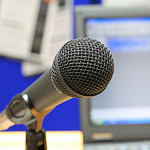
- Get a good microphone Don't be a cheapskate on this one... else you could spend hours of your time on re-recordings - Ill provide some more details on why later in this post.
- Invest in an anti-pop filter - this gets rid of the 'puffing' sound, caused by wind movement when very close to the microphone. A decent 6 inch one will only set you back around £12+ always check the reviews.
- Be consistent with your environment - different rooms will have different sound reflections - for example rooms that have more carpet are less likely to echo. Get into the habit of positioning the microphone at the same distance from your mouth. There is also a lot of noise coming from PC cooling fans, if you have a window open (next to a busy road) or noisy corridor, its often difficult to escape. Find a quiet place or even invest in a portable sound booth, build your own or if you have a big budget, go for a Vocal Booth (which is a self contained unit with audio damping). Yes, I know they look silly, but it helps cut out the background noise behind the microphone. It really boils down to how seriously you take your audio.
- Monitor, USB mouse and Keyboard extension cables - I don't hear this mentioned often, but if you want to keep the computer noise at bay, why not get some 3-4 metre extension cables for the PC - maybe a separate monitor if you are using a laptop. This allows you to place the microphone far enough away from noisy computer fans. (Typical PC setups will require a Monitor extension cable - a USB cable for the keyboard and and USB cable for the mouse - check the monitor plugs for the types you need.) - N.B. extending the length of your microphone lead will introduce noise - ensure you choose high quality cabling. If it reaches with the standard length it's probably best to stick with that!
What is a decent microphone?
 |
| Pop filter - they're big but work well! |
- On-board sound card using standard (3.5mm plug) microphones - you may find that your sound card is not up to the job. It is probably capable of fairly good sound, but can lack detail if using cheap microphones (N.B. the pros use XLR connectivity for best sound which is lacking on all standard PCs!), depending on your operating system, you also may have a battle with software volume controls and microphone boosts to get it sounding reasonable.
- USB microphones - these have their own built in sound cards - typically manufacturers have developed them to compensate for noise introduced via cables etc. Be careful, as not all of these are up to the quality you may expect.
- Lapel microphones, you are looking at a lot of money to get professional quality sound - its a trial an error game for the cheaper ones.
- Mixing benches (lots of knobs and dials) - these are good if you have multiple microphone set-ups allowing users to blend sounds (and provide pre amplification for professional microphones). However you have to ensure that you have a relatively noise free USB audio adaptor to introduce clean digitised audio into your PC, or else all the benefits you get from the microphone are lost in noise introduce at the final stages. Top end sound cards with XLR plugs may work but they are expensive and can add extra levels of complexity. Most people just want to plug in and record with out the trouble of multiple knobs and sliders to contend with.
- Omnidirectional or Unidirectional (loosely speaking 'Cardioid') microphones? Which ones? Omnidirectional picks up sound from every direction, whereas Unidirectional only records from one direction (the front of the microphone, typically). Omnidirectional tend to be more sensitive and you can expect ambient noise to be collected in huge quantities, whereas most unidirectional have the specific directional properties and are typically only usable between 4-10 inches from the mouth. Because of a lack of sensitivity behind the microphones (particularly Cardioid) they are less likely to pick up external noise directly behind them (N.B. using them the wrong way round makes them sound muffled). Unidirectional (Cardioid) are likely to be the best ones for use in office spaces with a decent sound booth. Further details on the various types of microphones available on wikipedia - its vast - only if you're interested!
JISCDigital Media have a cracking article on USB microphones, with some setting up guides, worth a look. Here are the key facts:
·
The microphone connects to
the computer USB port
·
Consistent sound across
different systems
·
Plug and Play installation
·
Many USB mics have a
headphone jack for monitoring
·
Many USB mics are optimised
for voice
‘…In many cases settings are chosen
with a particular use in mind, and many are optimised for voice recording. If
your intended use is compatible with this preset factory set-up, a USB
microphone can save you a lot of the time and knowledge needed for correct
set-up, and will simplify the recording workflow. While there is a quality ‘ceiling'
beyond which a USB microphone will not take you, it also presents very few
opportunities to go wrong.’
The ceiling that JISC Digital Media refer to consists of a number of factors. The biggest is that condensing microphones require their own pre-amplifier, the only way you get the power via a USB microphone is normally the USB port, you are then at the mercy of the quality of the power emanating from any given USB. However, most companies worth their salt build in electronics to smooth out noisy power. Its a case of try it and see - if you like what you hear, stick with it!
JISC Digital also include some audio examples in their article:
Hover over the various black markers to see which microphone they are testing (during audio playback it is possible to move the orange slider to those positions by dragging). Personally I was not impressed with the headset sound and some of the cheaper condensing microphones are a little hollow sounding (its all down to personal taste really). The Blue Yeti, certainly provides some excellent sound in the JISC Digital Media review, although its design may lead to tricky clamping and positioning of a pop-filter (it's a minor quibble).
A few examples of good USB microphones (Always check the reviews before making the final decision!):
- The Blue Yeti is a USB microphone and currently retails at around £120 (Example of an audio recording on YouTube)
- The Samson C01U Recording and Podcasting Microphone Pak is a complete solution (Less the anti-pop filter - you will need to buy this separately), it currently retails at around £140. There is an audio vocal record on the Samson website.
- The Samson Meteor Mic is not the best out there, but it's certainly worth a look based on USB connectivity sound and ease of use. This microphone currently retails at around £60. It's the cheapest but the reviews are good and examples of audio recordings using this microphone on YouTube may satisfy most peoples needs worth a listen... More details on the Samson website.
I'll quickly add that headphones such as the Sennheiser HD 202 Closed Back On-ear Stereo Headphone are relatively cheap (considering) but provide really excellent sound. If you dont like the look or design try looking through the reviews for other brands or more expensive versions. I can recommend these as I have a pair. I was also pleased to see people like Steven Spielberg using them to review audio in a recent movie review - if its good enough for him... ;)
Happy microphone hunting...